How the Form Builder Works
Learn how to customize forms, welcome emails, and other response emails with our Form Builder.

Get the job done with a pro
From training to full-service marketing, our community of partners can help you make things happen.

QuickBooks makes managing your finances easy and integrates with Mailchimp, allowing you to use your paid invoices to create smarter, more personalized marketing campaigns.
Every contact in your audience has a profile where you can view all available data about that person. Edit their profile information, view insightful e-commerce data, or apply actions such as unsubscribe, export, archive, or delete.
In this article, you'll learn about contact profiles, how to view them, and what information is available to you about your contacts.
Contact profiles are accessed from the contact table for an audience. To find a specific contact profile, use the search tool.
To view a contact profile, follow these steps.
Click Audience, then click All contacts.
If you have more than 1 audience, click the Audience drop-down and choose the one you want to work with.
Click a contact's email address to open their contact profile.
Each contact's profile contains general information about your contact, such as their name, sign up source, marketing status, contact information, predicted gender and age, and assigned tags or groups your contact belongs to. If you have a Standard plan or higher and a connected online store with enough data, we’ll also display a Predictive analytics section for your contact.
Here’s the information you’ll find on your contact’s profile page.
Click the three dots to unsubscribe, export their data, tag them as a VIP, or remove your contact from your audience. When you remove a contact, you'll choose to archive or permanently delete them.
If your contact opts to receive Inbox messaging, click Send Message to create and send an email via the Mailchimp Inbox.
Use the Overview, Insights, Notes, and Settings tabs to dive deeper into the information available for each contact.
The Overview tab is open by default on the contact profile. Here's the information you can find on the Overview tab.
The activity feed displays a visual timeline of your contact's engagement. Click the All Activity and Date drop-downs to display vital engagement information about your contact.
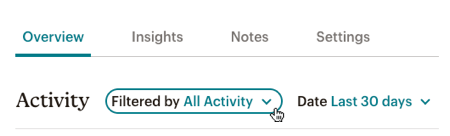
Here's the information you can find in the activity feed.
Sends
Shows which emails your contact has been sent.
Opens
Shows the date and time your contact opened emails.
Clicks
Shows the date and time your contact clicked links in your emails.
Subscribes
Shows when your contact has subscribed to your marketing emails.
Unsubscribes
Shows when your contact has unsubscribed from your marketing emails.
Bounces
Shows any emails that bounced when sent to this contact.
E-commerce
Shows purchases made through your connected store. If the purchase was made through a Mailchimp email, we'll display the email name.
Abandoned Cart
Shows any activity a user gathers after being sent an abandoned cart email.
Notes
Shows the notes you've made about your contact.
Conversation
Shows replies your contact made to emails that use our retired Conversations feature, now replaced with Mailchimp Inbox.
Marketing Permissions
Shows the date and time your contact selected a field for GDPR email consent.
Events
Shows custom events added through the API. Learn more about events.
Website Engagement
Shows page views and link clicks your contact has made on a connected website.
Survey Responses
Shows the date and time your contact completed a survey.
Inbox Messages
Shows any email messages your contact sent or received through Mailchimp Inbox.
All Signups
Shows the date, time, and method by which your contact was added to your audience.
Landing Page Signups
Shows contacts who joined your audience through a Mailchimp Landing Page.
Squatter Signups
Shows contacts who joined your audience through a Website “coming soon” squatter page.
Website Signups
Shows contacts who joined your audience through a Mailchimp Website.
E-commerce Signups
Shows contacts who choose to accept marketing emails when making a purchase through a store connected to your Mailchimp account.
Generic Signups
Shows contacts who joined your audience through an unofficial third party connection, or after being moved from one audience to another.
SMS Sends
Shows which text messages your contact has been sent.
SMS Clicks
Shows the date and time your contact clicked links in your marketing text messages.
Subscribe SMS
Shows when your contact has subscribed to your marketing text messages.
Unsubscribe SMS
Shows when your contact has unsubscribed from your marketing text messages.
The Insights tab highlights key performance metrics for each of your contacts. Track the open and click rates of contacts who’ve engaged with your content. If you have a store connected to your audience, you’ll receive insightful customer data that covers total revenue, average order size, abandoned carts, total orders, refunds, and products viewed. We’ll also display 30-day and 1-year metrics for orders, revenue, and average order amount.
The Notes tab contains a text field that’s used to add details about your contact. For example, if you had an important conversation with a contact at an event, you can make a note in their profile to help inform your future interactions with them. These notes will live in the activity feed of their contact profile, and will only be visible to you.
In the Settings tab, we'll display the predicted location, email client, email format, browser language, and the date of the last update.
If your audience is GDPR-enabled, the contact’s opt-in preferences will appear in this section. If they subscribed using a GDPR-friendly form, you’ll see the date and time of their form submission. Click the timestamp link to view a text-based version of the form they used to subscribe.
Note
The Settings tab isn't available for SMS-only contacts. Also, if your audience is GDPR-enabled, contacts added via the Mailchimp API are opted out of receiving marketing emails by default.
Technical Support

Have a question?
Paid users can log in to access email and chat support.
Learn how to customize forms, welcome emails, and other response emails with our Form Builder.
Mailchimp stores your contact data in audience fields. Learn about field types, how to view this data, and how to add and delete fields.
Mailchimp allows you to update contact information individually, and subscribed contacts can also update their own information at any time.