How the Form Builder Works
Learn how to customize forms, welcome emails, and other response emails with our Form Builder.

Get the job done with a pro
From training to full-service marketing, our community of partners can help you make things happen.

QuickBooks makes managing your finances easy and integrates with Mailchimp, allowing you to use your paid invoices to create smarter, more personalized marketing campaigns.
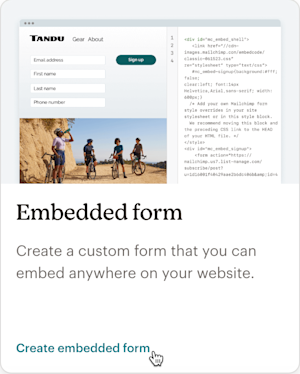
Embed a Mailchimp signup form on your website to attract new email and subscribed SMS contacts and boost your engagement.
In this article, you'll learn how to add an embedded signup form to your website, and which third-party websites allow Mailchimp forms.
Here are some things to know before you begin this process.
Once you customize your embedded form, Mailchimp generates a code. Add the code to the backend of the web page where you want your form to appear. When you make changes to your embedded form, the code snippet updates automatically. To update your embedded form, copy the new code and replace the old code on your website. If you're comfortable with HTML, manually edit the code to align with your organization's style and brand. Create as many forms as you need per audience and tailor them to suit your marketing needs.
After you’ve customized your embedded form, you’ll need to generate the form’s code.
To generate the form’s code, follow these steps.

Note
Embedded forms inherit your website's style sheet, so the form may look different in Mailchimp than it does on your website.
You can create multiple embedded forms to personalize your Marketing and grow your audience.
Here are some actions you can perform on the forms dashboard to manage your embedded forms.
Many third-party website platforms make it easy to embed Mailchimp signup forms. Check your website provider's support page for guidance if your platform isn't listed here.
Depending on your website platform, manual changes to the form's code may be required. For more details, check out Troubleshooting the Embedded Signup Form.
Technical Support

Have a question?
Paid users can log in to access email and chat support.
Learn how to customize forms, welcome emails, and other response emails with our Form Builder.
There are several ways to add a Mailchimp signup form to your WordPress site. Learn which signup form works best with your site.
Learn how to customize your Mailchimp embedded signup form for your website.
Learn how to create and manage popup forms in Mailchimp.