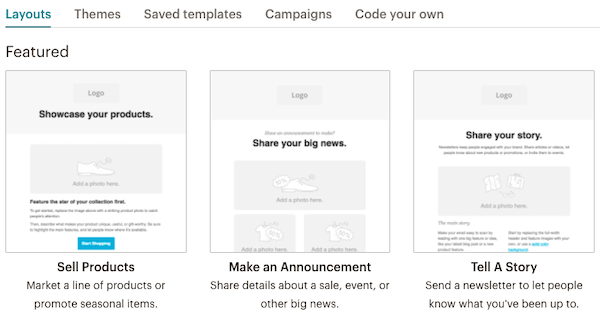
When you create a campaign using MailChimp's Campaign Builder, you can use our Drag & Drop Editor, Basic, or Predesigned templates to build beautiful, mobile-friendly email designs with ease. Below we'll walk you through how to select a template, add elements, and create the look you want.

Contents

Select a template

The template options are available on the Design step of the Campaign Builder. On this step, click the Select button under the option you'd like to use to begin designing your email.

Drag & Drop Editor

Once you've selected the Drag & Drop Editor, choose one of the available template layouts or select a previously created campaign to get started. We offer the following basic layouts:

  • 1 Column Layout
  • 1:2 Column Layout
  • 1:3 Column Layout
  • 2 Column Layout
  • 2:1 Column Layout
  • Left Sidebar Layout
  • Right Sidebar Layout

In addition to the above layouts, we offer a banded version of most templates. If you're creating an RSS-Driven campaign, you'll see 2 additional templates to choose from: the Basic RSS Layout and the Right Sidebar RSS Layout. Select one of these options if you'd like a template that contains RSS content blocks.

When viewing your previously created Drag & Drop campaigns, use the heart icon to save it as a favorite. From that point, when choosing a layout from your list of campaigns you'll be able to select from your list of favorites as well as our layouts and your previous campaigns.

Basic and Predesigned templates

Our Basic templates provide you with blank layouts where you can style the design, add your own header, and pull in colors to match your website to create a customized email. If you'd rather select a design and plug in your content, take a look at our Predesigned template options. We teamed up with some of the most talented designers on the web to bring you beautiful templates that are simple to use. You don't have to know anything about design or programming to get started. The Predesigned templates offer a number of categories to choose from including Newsletters, Holiday, Sports, Coupons, Music, and more!

Add your content

In each of the templates you will use content blocks to add and format text, upload images, link to files, and further tailor the layout for maximum flexibility and personalization using the editor toolbar. For more tips on editing content take a look at this article

Drag & Drop editor

Use the Drag & Drop Editor to duplicate, delete, and rearrange content and image blocks on the fly. Drag and drop content blocks into your layout to customize the look and feel of your campaign. There are several different content blocks you can mix and match to create a completely unique look for your email:

  • Text
  • Boxed Text
  • Image Group
  • Image Card
  • Image
  • Divider
  • Bottom Caption
  • Left Caption
  • Right Caption
  • Social Follow
  • Social Share
  • Button
  • Footer

If you're creating an RSS-Driven Campaign you'll also see the option for content blocks that allow you to add an RSS Header and RSS Items to your campaign.

After you've added your content, the blocks can be dragged vertically or horizontally within the template to mix up the layout and the design. Click the arrows in the upper left-hand corner to drag the block up, down, or sideways as needed.

Basic or Predesigned

If you're using one of our Basic or Predesigned templates, you'll find that many include repeatable, hideable, variable, or drag & drop content blocks. These blocks help you to create a customized design using a pre-exiting layout. We'll show you how to work with each of these in this article.

Edit styles

When you design a campaign in MailChimp, you can use the style editor to apply global styles to your email design. The style editor allows you to set text and link styles as well as add background colors to your campaign. Below we'll go over how to edit styles when you're using the Drag & Drop editor or the Basic or Predesigned campaigns.

Drag & Drop editor

The Design tab is where you style the campaign with colors and other details to make your campaign stand out to readers.

  1. Navigate to the Design step of the Campaign Builder.
  2. Select the Design option on the right-hand side of the page.
  3. Open the section of your campaign that you want to edit.

Use the different sections of the style editor to control the look and feel of your campaign:

  • Page Control the design of the page by setting the Background Style, adding or adjusting borders, and setting text styles for the different headings.
  • Preheader Control the background color, border style, text and link styles for the Preheader section of the campaign.
  • Header Control the background color, border style, text and link styles for the Header section of the campaign.
  • Body Control the background color, border style, text and link styles for the Body section of the campaign.
  • Footer Control the background color, border style, text and link styles for the Footer section of the campaign.
  • Mobile Styles Adjust the Mobile Styles to control how your campaign will appear for subscribers using mobile devices to check their email.
  • Monkey Rewards Turn the Monkey Rewards badge on and off or select a different badge type to display in your campaign.

Basic or Predesigned

  1. Navigate to the Design step of the Campaign Builder.
  2. Click the show style editor drop down to bring up the design options.
  3. Use the tabs to select a section of your campaign to edit.

Use the different sections of the style editor to control the look and feel of your campaign:

  • Page Control the design of the page by setting the background colors, adding or adjusting borders, and setting heading text styles.
  • Header Control text and link styles for the header and preheader sections of the campaign.
  • Body Control the background color, body text, and body links for the body section of the campaign.
  • Columns Control the background color, text style, and link styles for the different columns in your campaign.
  • Footer Control the background color, border, footer text, link style, social bar styles, and utility bar style for the footer section of the campaign.
  • MonkeyRewards Turn the rewards badge on and off or click the Change link to select a different badge type to display in your campaign.

Some of our Predesigned templates are limited in the styling options they offer. These were created with specific designs in mind, so controls are more limited. If you'd like that additional flexibility you can select a Basic layout or use the Drag & Drop editor.

Clear styles

If you're applying styles to your text but your content isn't updating to match, there may be some conflicting styles hidden in the source of your content. Conflicting styles often make their way into campaigns when content is copied and pasted from an outside source such as a web page or word processing program. To get rid of any conflicting styles, you'll need to follow the steps below to remove or clear these styles from your content.

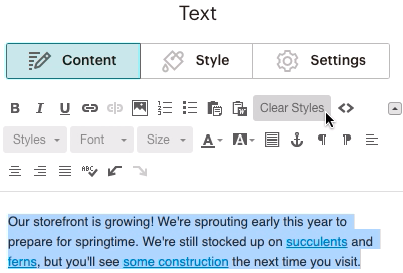
  1. Hover over the content box you want to edit and click the pencil icon to open the editor window.
  2. Click on the Content tab.
  3. Highlight the text you' want to change. If you need to clear styles for the entire content block, use the select-all option in your web browser to highlight all of the text.
  4. Click the the Clear Styles option on the editor toolbar.

The Clear Styles tool will only remove the formatting on your text, not the text itself. However, if you've copied your content from Word, clearing styles may not remove extra formatting that Word can produce. For more information on how to clean up content that's been copied from Word, have a look at this article.

Notes

  • Adding a background image to your campaign is not possible when using our WYSIWYG editor. Some email programs cannot render the HTML necessary to show the background image and this can ruin the overall design of the email. Take a look at this blog post for more information. If you really want to try to add a background image to a template, you'll need to enlist the help of your developer to make that happen.

  • Emails sent from a free account are required to include the rewards badge in the email footer. When an account moves to one of our paid plans: monthly or pay-as-you-go, the MonkeyRewards badge is removed automatically.