Email Testing Tips
Testing is always a good idea. Learn general email testing tips and troubleshooting specifics.

Get the job done with a pro
From training to full-service marketing, our community of partners can help you make things happen.

QuickBooks makes managing your finances easy and integrates with Mailchimp, allowing you to use your paid invoices to create smarter, more personalized marketing campaigns.
Every email client displays HTML a little differently. An email campaign that looks perfect in Gmail may appear odd in Microsoft Outlook. Before you send, use Inbox Preview to avoid unpleasant surprises and adapt your designs to work best with your audience's top email clients.
In this article, you'll learn how to use Inbox Preview.
Here are some things to know before you begin this process.
Inbox Preview is a Litmus-powered tool that generates screenshots of how your campaign will appear in different email clients on various devices. Test every client, or just the ones that are the most popular with your contacts. Inbox Preview also includes a color blind view so you can make sure your content is accessible.
Each time you create or update a preview, the cost is one token. For example, if you run an Inbox Preview for Outlook 2021, Gmail for Chrome, and Apple Mail 15 (Dark mode), the cost is three tokens. Paid monthly Marketing accounts receive 25 Inbox Preview tokens each month. Unused tokens expire at the end of each billing cycle.
Note
| Web-based | Desktop | Mobile |
|---|---|---|
| AOL (Chrome) | Apple Mail 2016 | iPad Gen 9 |
| Gmail (Chrome) | Apple Mail 2016 (Dark mode) | iPad Gen 10 |
| Google Apps (Chrome) | Outlook 2013 | iPad Pro (11”) |
| Office365 (Chrome) | Outlook 2016 | iPad Pro (13”) |
| Outlook.com (Chrome) | Outlook 2019 | iPad Mini (Gen 6) |
| Yahoo! (Chrome) | Outlook 2021 | iPad Air (Gen 4) |
| AOL (Firefox) | Outlook 2021 (Dark mode) | iPhone 15 |
| Gmail (Firefox) | Outlook Office 365 | iPhone 15 (Dark mode) |
| Google Apps (Firefox) | Outlook Office 365 (Dark mode) | iPhone 15 Plus |
| Office365 (Firefox) | Outlook for Windows 11 | iPhone 16 |
| Outlook.com (Firefox) | Outlook for Mac | iPhone 16 (Dark mode) |
| Yahoo! (Firefox) | Thunderbird | iPhone 16 Plus |
| AOL (IE) | iPhone 16 Pro | |
| Gmail (IE) | iPhone 16 Pro Max | |
| Google Apps (IE) | iPhone 16 Outlook | |
| Office365 (IE) | iPhone 16 Gmail | |
| Outlook.com (IE) | Android 10 Gmail | |
| Yahoo! (IE) | Android 11 Gmail | |
| Color blind view | Android 11 Gmail (Dark mode) | |
| Android Outlook | ||
| Android Outlook (Dark mode) | ||
| Android Samsung (Mail) |
When you run an Inbox Preview for the first time, we'll preselect the 10 most popular email clients across Mailchimp. If you've previously sent to your audience, click Top Client usage from your audience to view your subscribers' preferred email clients.
To run an Inbox Preview in the new builder, follow these steps.


After you fix any issues with your design, run an Inbox Preview update to see how your changes appear.
To run an Inbox Preview in the classic builder, follow these steps.
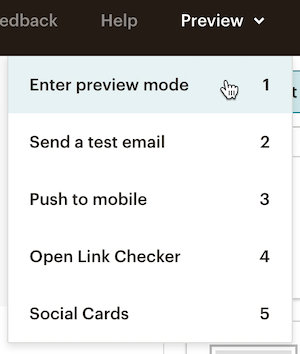
After you fix any issues with your design, run an Inbox Preview update to see how your changes appear.
Run an update to refresh Inbox Previews of your draft campaign in various email clients. Each email client you update will cost one token per preview.
To update an Inbox Preview in the new builder, follow these steps.

To update an Inbox Preview, follow these steps.
If you’re out of tokens or don’t have access to Inbox Preview, there are a few other ways you can preview and test your campaign.
Technical Support

Have a question?
Paid users can log in to access email and chat support.
Testing is always a good idea. Learn general email testing tips and troubleshooting specifics.
We recommend that you always preview and test your email before sending to your subscribers.