Requirements and Best Practices for Audiences
An audience of engaged contacts means more sales and a higher return on investment (ROI). Get tips and requirements for maintaining your Mailchimp audience.

Get the job done with a pro
From training to full-service marketing, our community of partners can help you make things happen.

QuickBooks makes managing your finances easy and integrates with Mailchimp, allowing you to use your paid invoices to create smarter, more personalized marketing campaigns.
If your audience has a lot of subscribed contacts who haven't heard from you recently, you may want to make sure they still want your marketing email. Sending email to subscribed contacts with old or invalid emails can lead to high rates of bounces, spam complaints, and unsubscribes. Even if an address is still valid, a contact may make a spam complaint if they don't want to hear from you. We generally consider such email addresses stale.
Unsubscribing your contacts' stale email addresses and reconfirming your permission to send to them may help keep your audience healthy and your open rates high. If you want to offer those contacts a way to subscribe again, they can use your audience's signup forms.
In this article, you'll learn how to export and unsubscribe existing contacts, and how to reconfirm their interest in email marketing.
Here are some things to know before you begin this process.
To reconfirm addresses, you'll export your audience, bulk unsubscribe the subscribed contacts, and send the unsubscribed contacts a link to your signup form.

Your export file will include separate CSVs for each type of contact. For this process, you'll only work with the subscribed CSV.
Next, you'll unsubscribe the subscribed contacts you exported.
After the email addresses are unsubscribed from your email marketing, you'll send a reconfirmation message.
In your reconfirmation message, you'll include a link to your signup form so that contacts can opt back into your email marketing. To find your signup form URL, follow these steps.
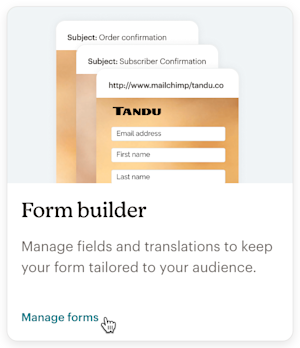

Offer your unsubscribed contacts different opportunities to resubscribe and receive marketing email from you again, depending on what is permitted in your jurisdiction and that of your contacts. Set up a pop-up form on your website, or send them an email from a different service.
For example, if you wish to send an email to reconfirm your contacts' interest, you could send an email from your business's email client or service. Here's how to do this.
Consider including an explanation of the types of email content you'll send to these contacts. Many users send links to past newsletters, or to a new sample newsletter, as well.
You're all set. As you send emails to these reconfirmed subscribers, you should see healthy engagement. To keep up with their information, include an update your preferences link to every email you send.
Technical Support

Have a question?
Paid users can log in to access email and chat support.
An audience of engaged contacts means more sales and a higher return on investment (ROI). Get tips and requirements for maintaining your Mailchimp audience.