This feature is accessible by users with Manager level or higher permissions. Take a look at this article to learn more about the different access levels for a MailChimp account.
Groups are a great tool for organizing the subscribers in your list for targeted communication. If you have multiple lists set up in your account instead of using groups, there's the possibility of ending up with duplicate subscribers across these lists. This can result in a higher overall subscriber count and potentially a larger monthly plan. Using groups instead of multiple lists makes it easier to manage and can save you money!
With MailChimp you can setup as many lists as you need, but if you're not an agency or if you're just looking to do some targeted marketing with segmenting, you may not need that many separate lists. It's almost always best to keep one list and use Groups and segmenting as much as possible. Take a look at this article for more information on list management.
When you add Groups to your list, you can select an option for how the Groups will appear on your signup form, or select the option to not display them. When people sign up for your list they can select the group, or groups, they want to join. Below we'll walk you through two different ways to add Groups to your list.
Contents
Add Groups to your list on the Lists page
- Navigate to the Lists page.
- Click on the Gear drop down and select the Create Groups option.
- On the Create Groups page use the first drop down to check that the correct list has been selected.
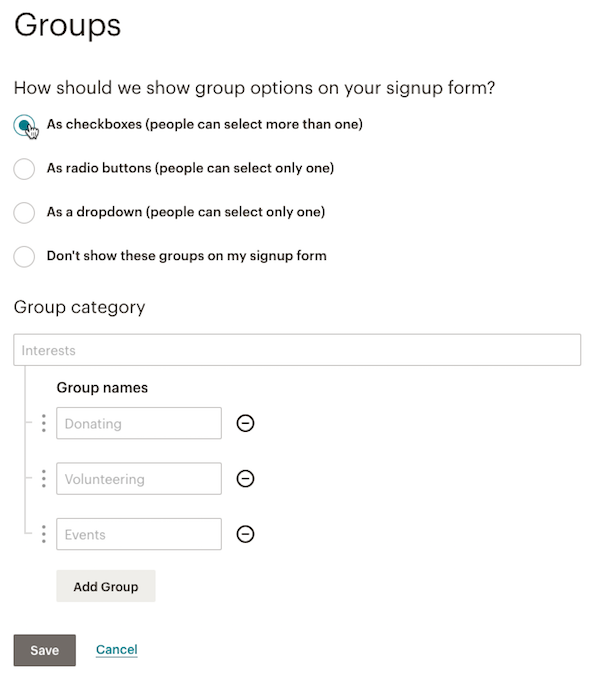
- Select an option for how the Groups will appear on your signup form, or select the option to not display them.

- Next, create a Group Title and a group name. The Group Title serves as an overall category for your groups in order to keep similar options together. It's best to choose something descriptive, like "What's your favorite food?", and then use the group name to display the different options.
- To add more group names (options) click the + Add Group dialogue.
- Click the Save button when you've added all the information.
- A success message will appear and you can choose to View Groups, Import to These Groups, or click Done For Now to return to the Lists page.
Add Groups to your list through the signup form
- Navigate to the Lists page.
- Click on the Gear drop down and select the Forms option.

- Confirm you're on the Build It tab.

- Select the type of Group you want (Radio Buttons, Check Boxes, or Drop Down) from among the field types on the Add A Field tab to the right of the signup form.

- Your field settings will appear on the right. Set your preferences for the field and click the Save Field button.

- The new field will now be saved to your signup form.
When you add a field to a form, the Radio Buttons and Drop Drop options can be used as a regular field or as a Group. To convert the newly created field to a Group click the Convert to Group button on the Field Settings tab.
Notes
Keep in mind that deleting a form field also deletes all info in your list associated with it. Make sure that this is what you really want to do before deleting. Remember you can hide a field from your recipients in your list, if that is a better option.
Related Articles
- How can I create a segment with more than 5 criteria?
- What do I do if I have more than 60 lists in Constant Contact?
- When sending to a segment or groups from my list, can I see who is receiving the campaign?
- How do I move my existing subscribers or segments of my list into Groups?
- How do I use Smart Merge Tags with Groups?