Use Mailchimp on Mobile Devices
Mailchimp is responsive, meaning you can use it on mobile devices. Learn how Mailchimp works on different devices. And find out about other mobile tools.

Get the job done with a pro
From training to full-service marketing, our community of partners can help you make things happen.

QuickBooks makes managing your finances easy and integrates with Mailchimp, allowing you to use your paid invoices to create smarter, more personalized marketing campaigns.
Mailchimp's mobile app makes it easy to manage your account on the go. Create and edit campaigns, track account activity, send and reply to Inbox messages, view reports, and add new contacts directly from your mobile device.
This app can do a lot for you when you're out and about, but it's not meant to replace the full version of Mailchimp. If you need to do something in your account that isn't available in the mobile app, access the full version of Mailchimp in a web browser.
In this article, you'll learn what you can do with Mailchimp's mobile app.
Here are some things to know before you begin this process.
You’ll find the main navigation at the bottom of your screen. These include Home, Audience, Campaigns, and Analytics. Also, tap the plus icon to access the Quick Actions menu, then add contacts, upload images from the content studio, create email campaigns, social posts, and landing pages.

To search for a specific campaign or contact, tap the search icon.
After you type in a keyword or a name, you can sort your results by either option.

To access your account settings, tap the Settings gear icon on the Home tab.

From there, you can connect additional accounts, switch between connected accounts, verify email domains, manage push notifications, set your logo, set your account to dark mode, search our guides and tutorials, or get help. Use Explore Mailchimp to get a glimpse of other features you can try out.
We’ll provide suggestions and recommended actions on how to grow your audience and share stories about other Mailchimp users. For example, we may suggest that you try a Welcome email automation, an abandoned cart email, or a product retargeting email. To learn more about these features, check out Create an Automated Welcome Email on Mobile, Create an Abandoned Cart Email on Mobile, and Create a Product Retargeting Email on Mobile.
To learn about your settings options, check out Manage Account Settings on Mobile.
The Home tab is an at-a-glance view of how your campaigns are doing. It syncs with your account data as you build your audience and complete campaigns.
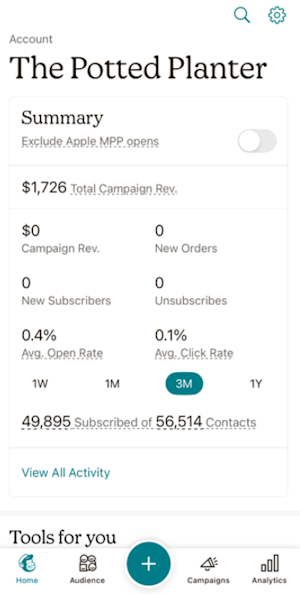
The Home tab includes a few important sections.
On the Audience tab, you’ll see performance stats for your audience, including information on opens, clicks, subscribes, unsubscribes, and more. You can also communicate with and manage your audience from this tab.
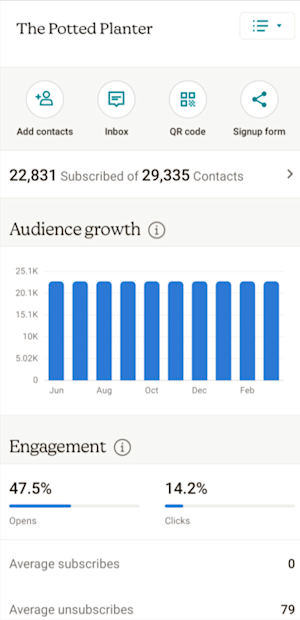
Here are some tasks and how to complete them.
The Audience growth graph shows monthly trends in your subscribed contacts growth. Tap a bar in the graph to view data for a specific month.
If you have more than one audience, you can switch between them by tapping All Audiences. The audience you switch to will become the new default in your account.
In the Subscribers section, view Subscribes and Unsubscribes from your last campaign.
In the Engagement section, you’ll find the average open and click rate per audience for your campaigns. View the average subscribed, average unsubscribed, total unsubscribed, and total cleaned addresses since your last campaign.
In the Contacts section, view VIP contacts, contacts by tags or groups, see where your contacts are located, and view which email client they used. To learn more about contacts, check out Add or Import Contacts on Mobile.
Here are some tasks and how to complete them.
The Quick Actions tab provides a shortcut to import contacts from a file, your device address book, manually, or use the business card scanner. While you're out and about, quickly add images from the content studio, create landing pages, social posts, or emails to get your message out and grow your audience.
The Campaigns tab shows your emails, automations, landing pages, automation flows, and social posts. To create a draft campaign, tap the pencil icon or use the Quick Actions menu.
To filter the campaigns, tap the filter icon. Use the filter tool to sort and find your campaigns by type and status.
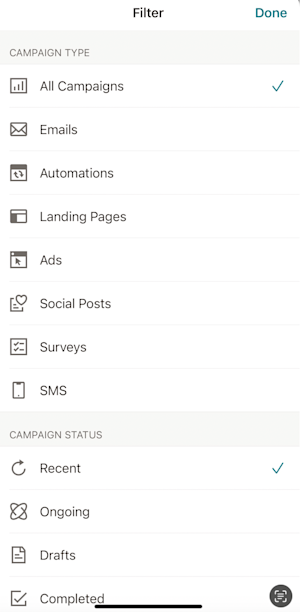
After you find the campaign you want to work with, tap it and take one of these actions. Available actions vary by the campaign status and type.
These emails and ads haven’t been sent yet.
Ongoing campaigns include automations, RSS campaigns, and ads.
Here, you’ll find campaigns that are done sending.
Use this filter to view all of your draft, ongoing, and completed campaigns. You can also view automation flow details for your draft, active, and paused campaigns.
The Analytics tab displays reports for recent emails, ads, landing pages, social posts, surveys, and automation flows. Use the Audience drop-down to choose your audience then tap any campaign to view its report and access other tasks.
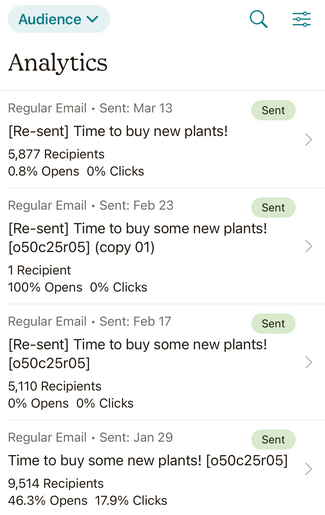
On the Overview screen of any campaign report, you'll find detailed information and statistics, including the campaign send time and a 24-hour performance graph.
From here, you can also complete these tasks.
Note
Both A/B Testing and Multivariate campaigns are labeled as Multivariate campaigns on this screen. When you view an A/B Testing or Multivariate campaign report, we'll list the winning combination and the combination results.
Apple's Handoff feature allows you to begin working on one iOS device and pick up where you left off on another. Handoff is available in Mailchimp for iOS version 3.5 and later. Mailchimp for iOS must be installed on each compatible device you want to use.
When you're working in Mailchimp for iOS on a compatible device, a Mailchimp icon appears in the lower-left corner of the lock screen on your other devices. On the new device, swipe the icon up to open Mailchimp for iOS, and we'll send you straight to the screen you were viewing on your other device.
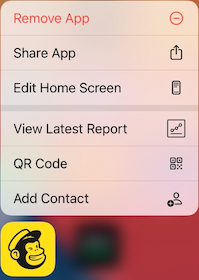
Apple's 3D Touch feature opens a menu when you touch and push on the Mailchimp app to show you shortcuts to add a contact, view your latest report, edit your home screen, and share or delete an app.
Mailchimp for iOS includes campaigns and audience widgets that can be added to the Today view in the pull-down iOS Notification Center. The campaigns widget displays an overview of reporting statistics for your most recent sent campaign. The audience widget lets you choose an audience, display audience growth statistics and provides a shortcut to add contacts.
The Mailchimp Last Campaign widget provides simple campaign monitoring from your Home screen, even before launching the app.
To add the Mailchimp Last Campaign widget, follow these steps.

Visit Apple Support to learn more about widgets on your iOS device.
Mailchimp for iOS will display in English, Spanish, Portuguese, German, French, Dutch, or Italian depending on the language preference you set in your iOS device’s Settings app. To learn more, check out this Apple resource on how to change the preferred language for an app. With iOS 13, you can also set your language preference for individual apps like Mailchimp. To learn more, check out this resource on how to change the language for individual apps on iOS.
Technical Support

Have a question?
Paid users can log in to access email and chat support.
Mailchimp is responsive, meaning you can use it on mobile devices. Learn how Mailchimp works on different devices. And find out about other mobile tools.
Learn how to create, design, and send email campaigns on your iPhone or iPad.